REQUIRED COMPONENTS
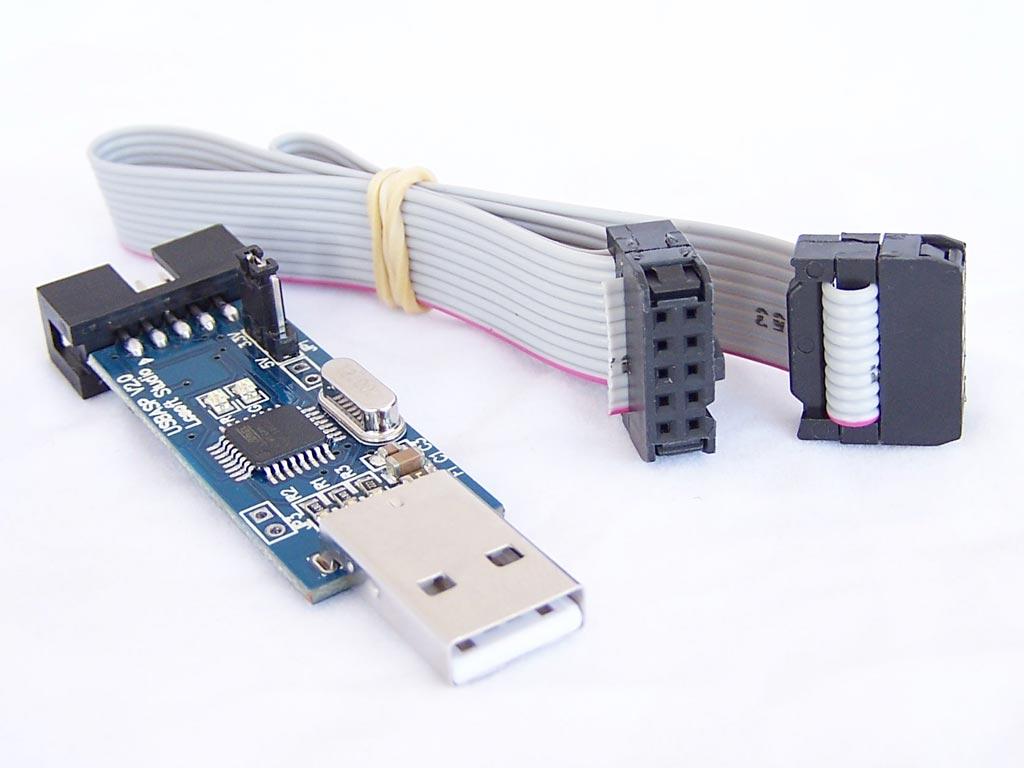
The following components are required to perform the firmware update:- The USBASP Programmer
- An Arduino Uno (a nano should equally work)
- Jumper wires
- Breadboard
PREPARE THE ARDUINO UNO
Uploading firmware to the USBASP requires a programmer. For today’s tutorial, we will use an Arduino Uno as that programmer. To make the Arduino a programmer, we need to upload a sketch, available among the examples on the Arduino IDE, to the Arduino board. Follow the steps below to do this:- Go to File > Examples > ArduinoISP
- Connect an Arduino board to your PC
- Select the port and board type and Click on Upload
SCHEMATICS
Next, we need to connect the USBASP to the Arduino Board. Using jumper wires and the breadboard (if necessary) connect the Arduino board and the USBASP device as shown in the image below: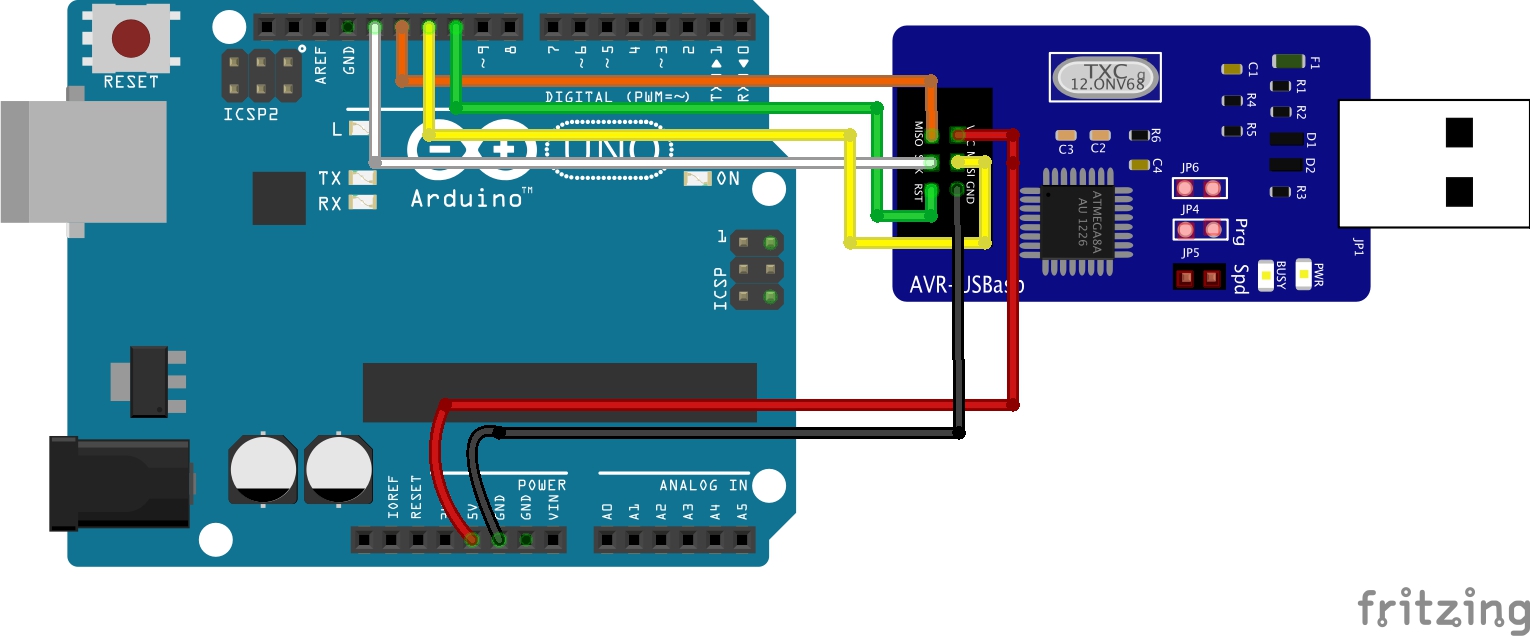
5v - VCC
GND - GND
D13 - SCK
D12 - MISO
D11 - MOSI
D10 - RESET
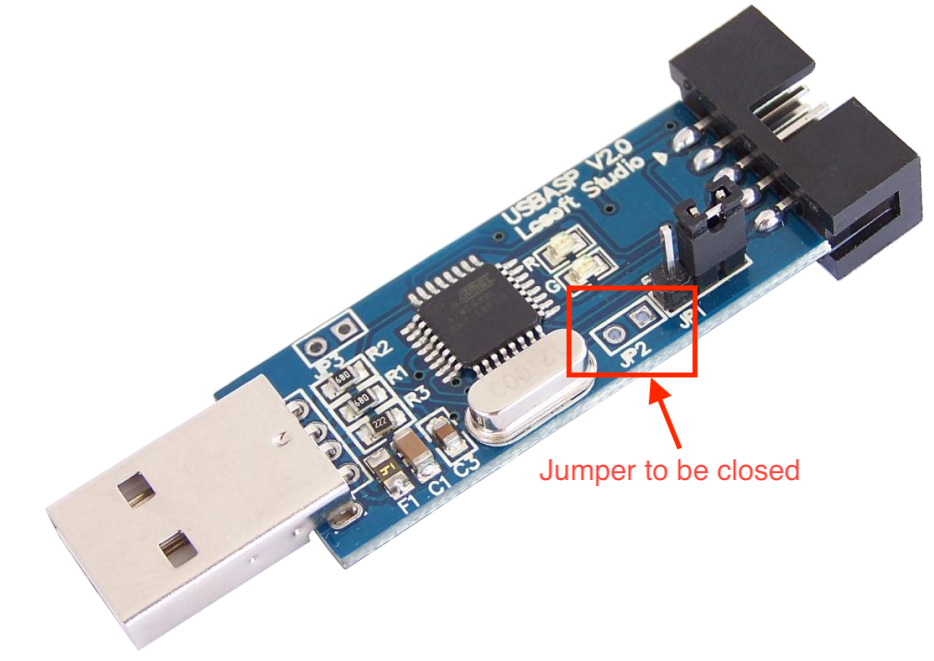
Go over the connections once again to ensure it’s properly done. If you have doubts about identifying the pins on your USBASP, you can run a google search for the pin-out of that particular board and use it as a guide for the connection. With the boards connected, one more thing we need to do is to close the Jumper JP2 (highlighted below) on the USBASP board. Without doing this, we will not be able to upload firmware to the device. Close the jumper by bridging it with solder led or jumper wires.
 With this done we are now ready to upload the firmware.
UPLOADING THE FIRMWARE
We start by downloading the firmware. A repository containing the latest version of the firmware is maintained on Thomas Fischl’s website. As at the time of this writing, the latest version which thankfully has TPI support was released in May 2011. Download that. A key ingredient of the firmware upgrade process is the AVRDUDE. If you are familiar with the Arduino IDE, you would definitely have seen a reference to it in the verbose during code upload. The AVRDUDE is an utility to download, upload, and manipulate the ROM and EEPROM contents of AVR microcontrollers using the in-system programming technique (ISP). The easiest way to get the AVRDUDE is by fetching its executable located within your Arduino folder -> “ARDUINO FOLDER”/Java/hardware/tools/avr/bin/ or you can downloading it. Once you have it, the next step is to find it’s configuration file; avrdude.conf file, which (if you follow the Arduino IDE route) would be at the directory -> “ARDUINO FOLDER”/Java/hardware/tools/avr/etc/ Put these two files (the AVRdude executable and configuration file) inside a folder along with the .hex file of the USBasp firmware we just downloaded. This helps shorten the length of the final command. With these done, connect the Arduino with the USBasp programmer attached to it, to your computer, and note down the port that was assigned to the Arduino by your computer. Finally, open a terminal window, navigate inside the folder we created earlier, and run the command below:./avrdude -C ./avrdude.conf -p m8 -c avrisp -P /dev/cu.usbmodem14101 -b 19200 -U flash:w:usbasp.atmega8.2011-05-28.hex:i
-P. If this succeeds without any error message, then your USBASP now has the latest firmware, and it’s ready for some action.
That’s it for this tutorial!
Do feel free to reach out to me via the comment section if you have any challenges with getting this to work.
References:
- USBASP firmware update
- Thomas Fischl website
- TPI Notes from Atmel
- Avrdude user manual