. Any kind of Android phone should work.
b. Arduino Duemilanova ATmega 328
c. Eclipse IDE for Java EE Developers
d. Androidsdk
e. Amarino Toolkit
f. Bluetooth Modem – BlueSMiRF from sparkfun or any other Bluetooth Adapter(recommended). BUY ONE
. Any kind of Android phone should work.
b. Arduino Duemilanova ATmega 328
c. Eclipse IDE for Java EE Developers
d. Androidsdk
e. Amarino Toolkit
f. Bluetooth Modem – BlueSMiRF from sparkfun or any other Bluetooth Adapter(recommended). BUY ONE

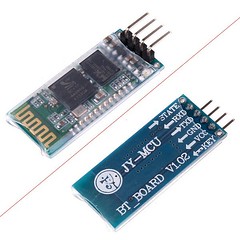 This Bluetooth adapter is a low choice for Arduino- Bluetooth experiments.
g. Potentiometer, Temperature Sensor, Light dependent resistor any other kinds of variable resistor- You can read more about using variable resistors and temperature sensors at http://www.buildcircuit.com/how-to-use-variable-resistor/
Step 1 Install Amarino
Go to http://www.amarino-toolkit.net/ and download the following applications on your mobile phone.
a. Amarino - Android Application- to be installed on phone.
b. Amarino Plug-in Bundle- to be installed on phone.
c. Amarino Library- To be kept in computer- needed to installing the application
Step 2 Download Meet Arduino Library
Download the MeetAndroid Library and place it into the libraries Folder Arduino.
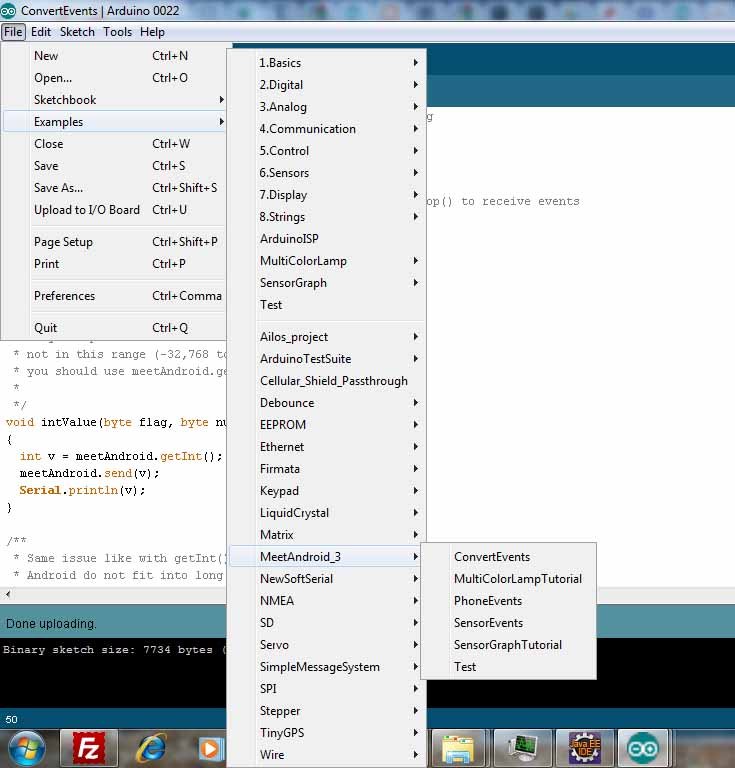
After placing the folder into the libraries folder, you should be able to access all the Amarino files through the Arduino programming environment.
You can see the picture below(Click on the image to enlarge it):
This Bluetooth adapter is a low choice for Arduino- Bluetooth experiments.
g. Potentiometer, Temperature Sensor, Light dependent resistor any other kinds of variable resistor- You can read more about using variable resistors and temperature sensors at http://www.buildcircuit.com/how-to-use-variable-resistor/
Step 1 Install Amarino
Go to http://www.amarino-toolkit.net/ and download the following applications on your mobile phone.
a. Amarino - Android Application- to be installed on phone.
b. Amarino Plug-in Bundle- to be installed on phone.
c. Amarino Library- To be kept in computer- needed to installing the application
Step 2 Download Meet Arduino Library
Download the MeetAndroid Library and place it into the libraries Folder Arduino.
After placing the folder into the libraries folder, you should be able to access all the Amarino files through the Arduino programming environment.
You can see the picture below(Click on the image to enlarge it):
Step 3 Set up Bluetooth adapter
For this experiment, you can either use BlueSMiRF Bluetooth module (from sparkfun) or a general Bluetooth module from www.buildcircuit.net. Amarino is perfectly compatible with both of these modules. BlueSMiRF adapter is expensive than the general one, so, I recommend to buy the general one. Connect the Bluetooth adapter in the following way:Step 4 Test the communication between Bluetooth adapter and Arduino
Step 5 Set up Eclipse
phone has Android 2.1 API 7. 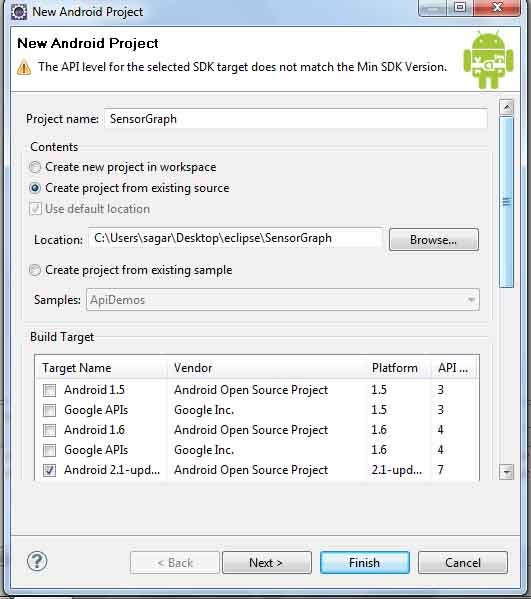
- Select 'create from existing source'.
- Use the browse button to find your Sensor Graph folder that you just downloaded.
- Select android 2.1 OR any other versions as the targeted device from the list. It depends upon the phone you use.
Click Finish.
*You might get yellow exclamation warnings next to your sensor graph project, it doesnot affect your project, so, just ignore it.
*If you have a red “X” you might need to make you have your “AmarinoLibrary_v0_55.jar ” file is included. Download it from http://www.amarino-toolkit.net/index.php/download.html
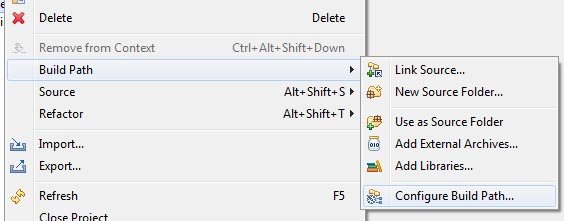
*To include the file right click on your SensorGraph folder and click build path > configure build path > libraries > add external jar > and browse for the AmarinoLibrary_v0_55.jar file. > ok
**Very very Important- Open the SensorGraph.java file in Eclipse and place your bluesmirf device number inside this line of code ( private static final String DEVICE_ADDRESS = “YOUR BLUE TOOTH DEVICE NUMBER”;)

** Changing AndroidManifest.xml file. Go to Application and set Debuggable as 'True'.

Phone side (HOW TO INSTALL THE APPLICATION)
Your phone should already be connected via usb to your computer, In your phone settings, developer debug mode, and install from unknown sources checked.
In my phone, it was in settings>applications>USB debugging.
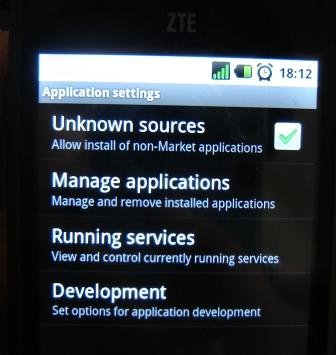
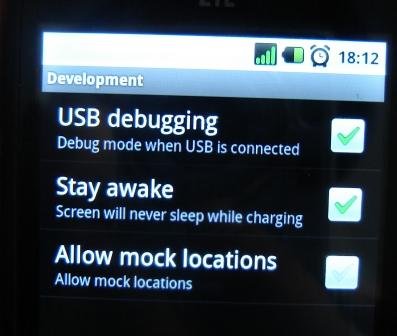
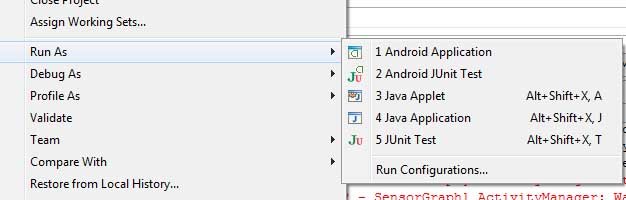
When the dialog box of the AVD manager launches select your phone as the targeted device. It will be the one that does not say emulator and probably have some device number to it.
Launch
This will install the SensorGraph app to your phone and run it.
NOTE: If your application does not install on the phone, then there is a possibility that your phone's device driver is not installed on computer. Go to Device manager and install the driver for your phone. If you have internet connection, it searches automatically for the driver. You can get more information from here: http://developer.android.com/guide/developing/device.html
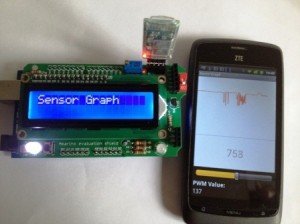
Arduino Side You can get Arduino code file on one of the folders of Sensor Graph. Set the same baud rate that you have in Bluetooth adapter. While uploading the sketch to Arduino, remove the RX and TX connections of Bluetooth module.Then make a simple circuit using LDR, variable resistor or thermistor. In the picture below, I have used LDR(light dependent resistor).
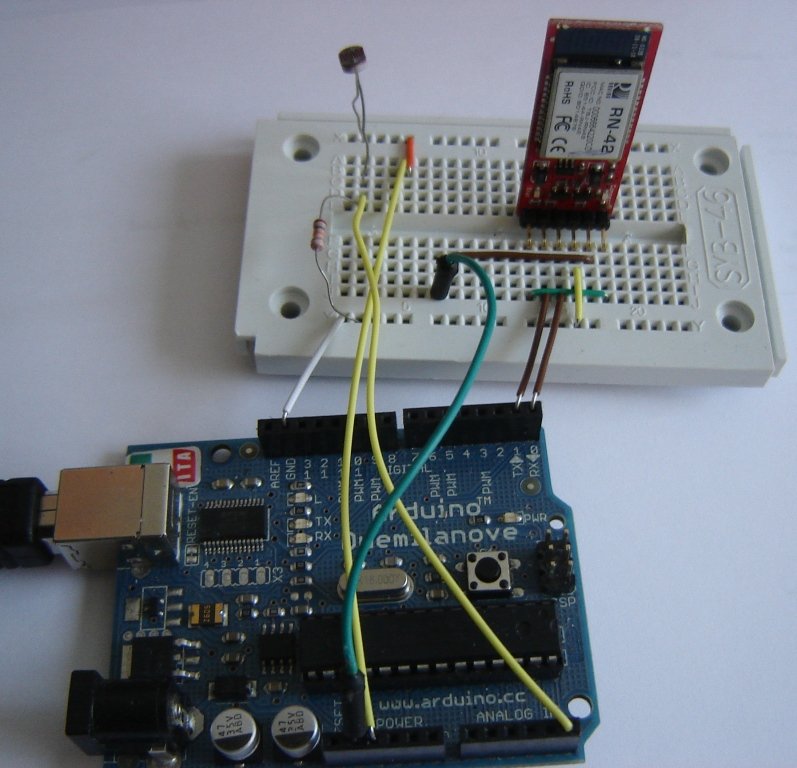
If you have never done this kind of experiment before, I recommend you to do this experiment first: http://arduino.cc/en/Tutorial/AnalogReadSerial
-After uploading the sketch and fixing the circuit, connect the bluetooth module. Connection of bluetooth module has been described earlier in this tutorial.
If you follow the instructions carefully, your application will work. Please write me if you have any problem. You can watch the output on the video.
Check your experiment
1. Did you edit the MAC address?
2. Did you set 'Debuggable' as True in AndroidManifest.xml ?
3. Did you see if the baud rate written in your Arduino program is same as baud rate of Bluetooth adapter. If you are not sure about the baud rate, you can check it, see the following tutorial.
Please note that the baud rate of general Bluetooth adapter is always 9600bps.
4. Did you connect the Bluetooth module in the correct way?