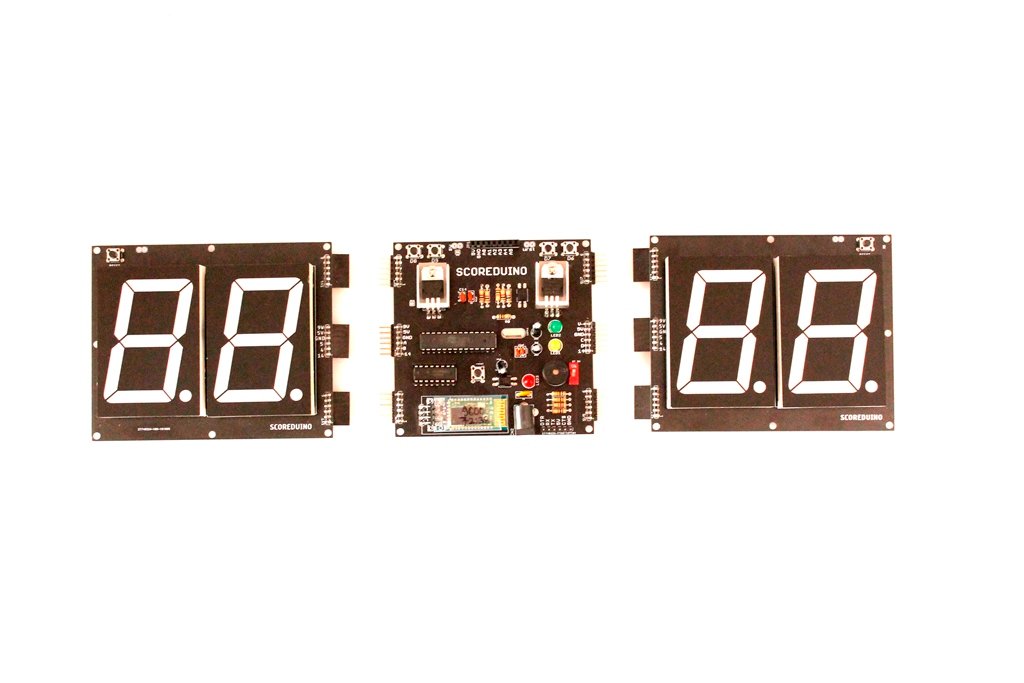
The ‘SCOREDUINO-B’ module works as a basic controller for 2.3", 3", 4", and 5"- 4 digits (2 on each side) scoreboards. It has 4 switches for up and down commands for each set of 2 displays.
Other features:
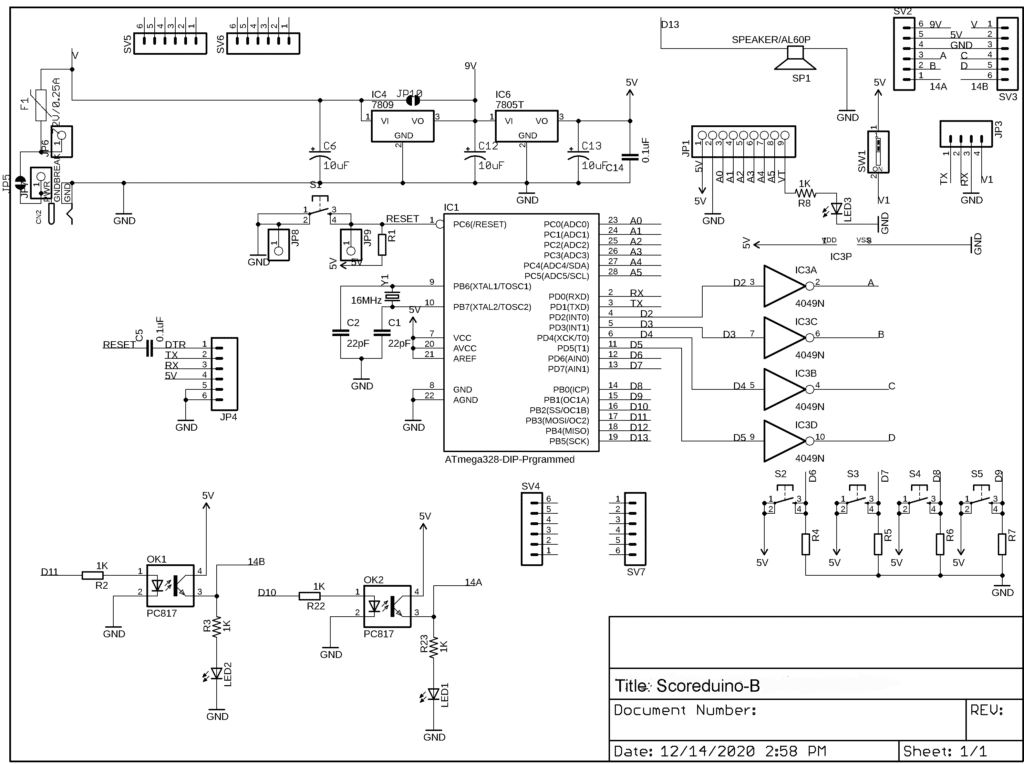
 The Schematic:
 This is how we use Scoreduino-B:
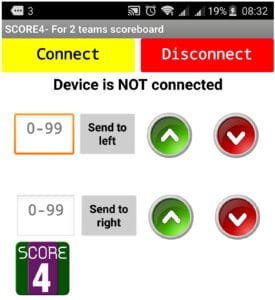
- It has a Bluetooth module that communicates with the SCORE4 module of the Scoreduino app and control signals can be sent to Scoreduino-B via Bluetooth
- It has a header for an RF module which makes it capable of receiving up/down control signals from RF remote control.
- Scoreduino-B is programmable like any other Arduinos. It requires an FTDI basic breakout board.
- The outputs of Scoreduino-B are inverted using CD4049.
- Designed to work with 2.3", 3", 4" and 5" scoreboards.
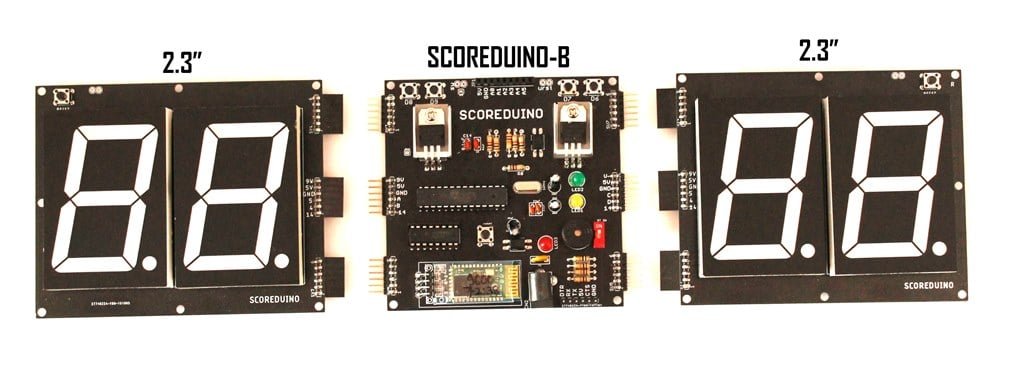
- 9V: This is to power up RED colored 2.3" displays. We get this voltage from the voltage regulator LM78XX.
- 5V: 5V is used for CD4511 and 74LS192 on the left side
- GND: GND of Scoreduino-B connects with the GND of 2 digits up/down counter
- A: Send pulse from Scoreduino-B via this pin in order to count UP
- B: Send pulse from Scoreduino-B via this pin in order to count down
- 14: Reset pin. Send pulse to reset the count.
- V: V depends upon the color of the displays used on the right side. For example, GREEN colored 2.3" display needs 12V. This is the default supply voltage.
- 5V: 5V is used for CD4511 and 74LS192 on the right side
- GND: GND of Scoreduino-B connects with the GND of 2 digits up/down counter
- C: Send pulse from Scoreduino-B via this pin in order to count UP
- D: Send pulse from Scoreduino-B via this pin in order to count down
- 14: Reset pin. Send pulse to reset the count.
- 1 x PCB
- 6 x 6 pin male header angle
- 1 x 6 pin male header for programming
- 1 x 9 pin female header- to be changed in the next version to make it 4CH only.
- 5 x tactile switches
- 2 x heat sink set
- 1 x LM7805
- 1 x LM7809
- 2 x 22pF capacitor
- 1 x 16Mhz oscillator
- 3 x 10uF
- 2 x PC817
- 5 x 10K
- 5 x 1K
- 3 x 5mm LED (RED Green and BLUE)
- 1 x 1P DIP switch
- 1 x buzzer
- 1 x DC barrel
- 1 x resettable fuse
- 1 x Bluetooth module
- 1 x 16 pin DIL socket
- 1 x 28 pin DIL socket
- 1 x Atmega328P
- 1 x CD4049
See all the images on Flickr
The Schematic:
This is how we use Scoreduino-B:
 [products columns="6" orderby="title" order="ASC" ids="19040, 19629, 19833, 19873, 19898, 24050, 24067, 19805, 20054, 23738, 24117, 24130, 24138, 24161, 24168"]